 iDraw 1.3
● Gesture drawing timer for Windows
Your references. On the clock.
Pick your image folders, set the poses and the time, and draw. Offline, no account.

A timer for the reference library you already have.
No built-in pose library and no subscription. Add folders, start a session, and iDraw shows each image for a set time.
- 5–25
- poses per session, or a custom count
- 5s–25m
- per pose
- 3·5·10s
- optional pose-change gap
- 0
- accounts, ads or analytics





Image folders
Add any number of folders. iDraw scans them, including subfolders, for JPG, PNG and GIF images and shows how many it found.
Pose-change gap
The image fades to black, then the next one fades in, like a model changing position.
Shuffle and mirroring
Shuffle the order, and randomly flip images horizontally to get fresh angles from a familiar library.
Minimal session view
The photo comes first. A solid progress strip sits below it, and the controls fade away when you stop moving the mouse.
Accent color
Signal yellow by default. Pick violet, cyan, green, orange or pink from a dropdown in the sidebar — it applies instantly.
Saved sessions
Name and save your setups and start any of them in one click.
History, on your terms
Browse thumbnails of what you drew recently. Turn "Save to history" off for a session, or press S mid-session to change your mind.
Private and offline
No network requests. Your images and history never leave your computer.
Nothing between you and the pose.
Screenshots of iDraw 1.3 on Windows 11, running a session from a folder of figure references.
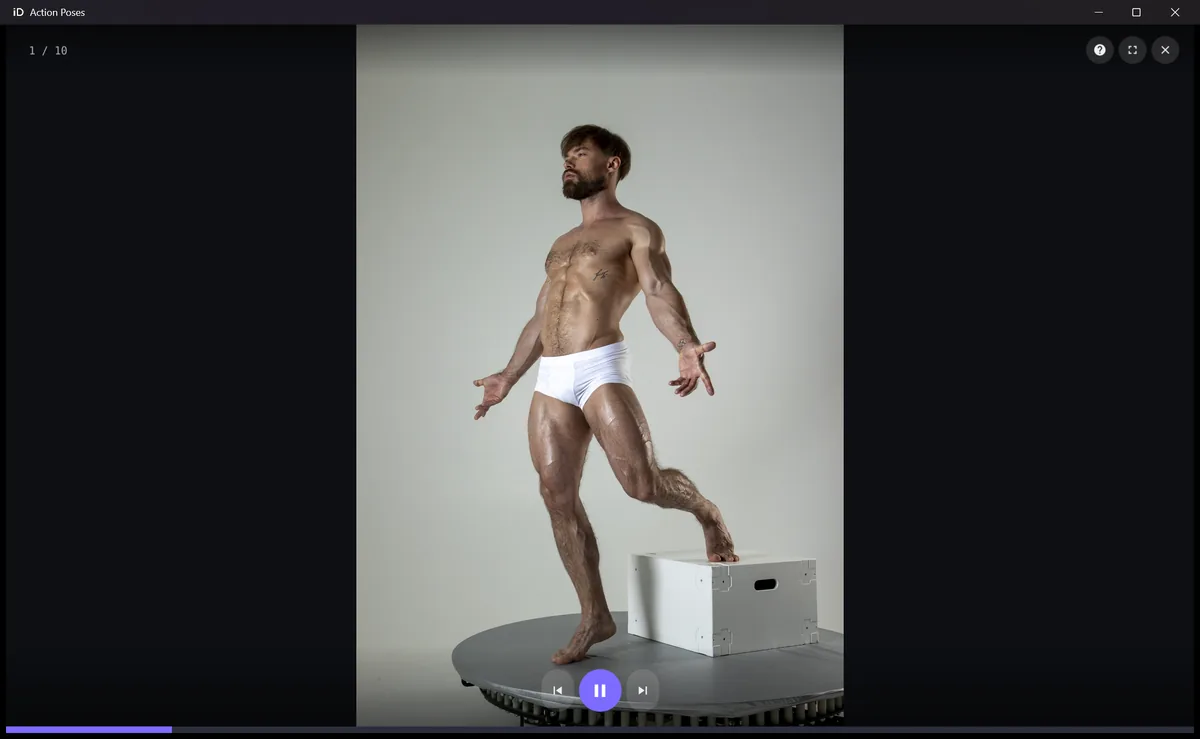
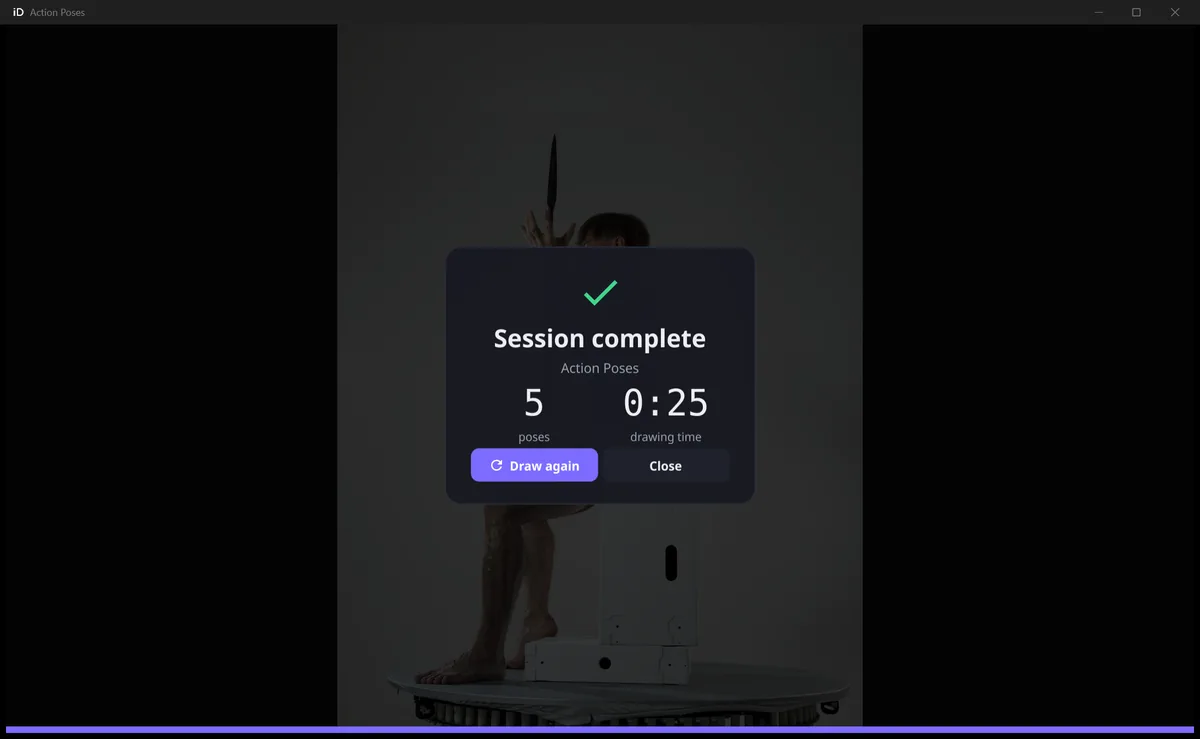
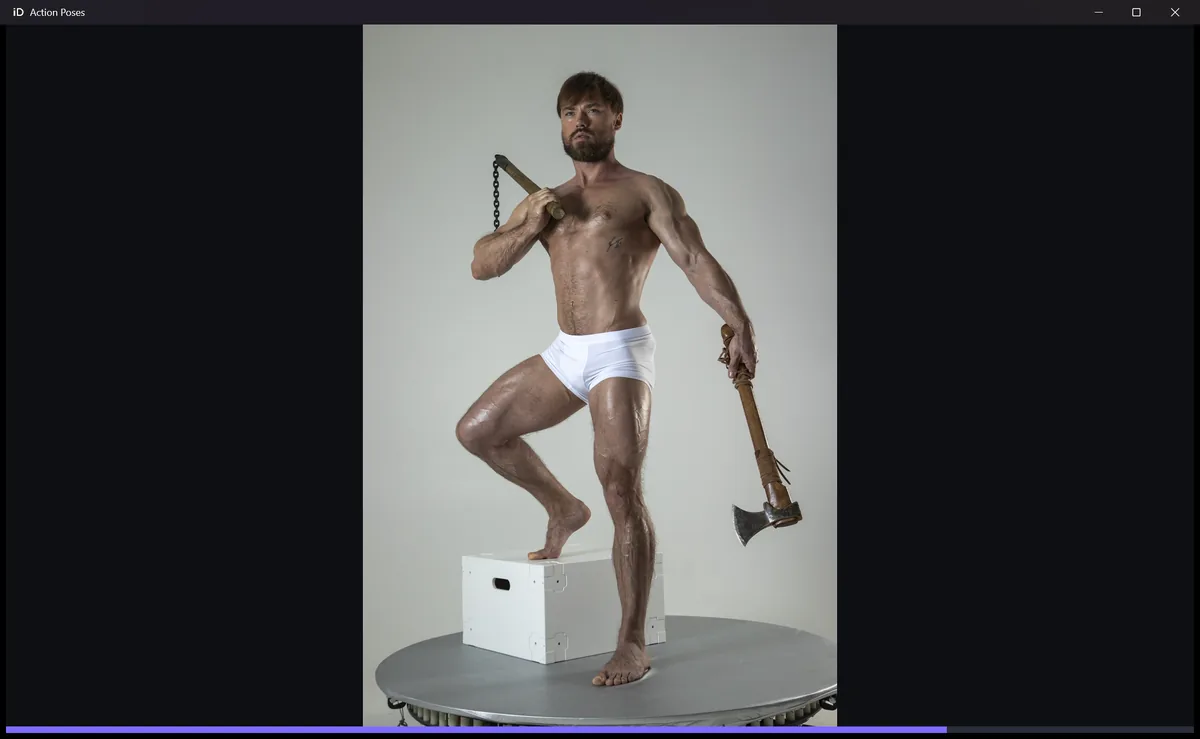
Run the whole session from the keyboard.
| Key | Action |
|---|---|
| Space | Pause or resume |
| ← → | Previous or next pose |
| F11 F | Fullscreen |
| S | Save this session to history, or stop saving it |
| H ? | Show or hide the keyboard guide |
| Esc | Leave fullscreen, then end the session |
Questions
Anything else: idraw-admin@pm.me
Does iDraw come with reference images?
No. iDraw is built around your own images: photo packs you bought, references you shot yourself, or any folder of JPG, PNG or GIF files you have the right to use.
Does it work offline?
Yes. iDraw makes no network requests and works entirely offline once installed.
What data does iDraw collect?
None. Sessions, history and thumbnails are stored locally on your PC, and nothing is sent anywhere. See the privacy policy.
Can I keep a session out of my history?
Yes. Uncheck "Save to history" in the session settings, or press S during a session. Turning it off removes that session's entries; turning it on adds the images you've already seen.
Which versions of Windows are supported?
Windows 10 and Windows 11, 64-bit. iDraw installs and updates through the Microsoft Store.
How much does it cost?
iDraw is a one-time purchase on the Microsoft Store, with no subscription. The Store page shows the current price for your region.
Start your next session.
One-time purchase. Windows 10/11.
Built by Karan, who has drawn for years and wanted a simple way to run gesture sessions from his own reference library. Artwork: Linktree.